This website provides general lifestyle information only and is not professional or medical advice.

Build a Home Office That Works With Your Body

Clear, research-informed guides for Australians setting up desks, chairs, screens, and daily routines—without the hype.

Start with furniture

Why Ergonomics Matters at Home

Your dining table was never designed for eight-hour typing sessions.

When you work from a kitchen stool or a laptop on the couch, small postural compromises add up. Australian Bureau of Statistics data shows remote and hybrid work remain common across many industries, which means more of us are responsible for our own workstation design. Ergonomics is not about buying the most expensive gear—it is about aligning your chair, desk, screen, and input devices so joints stay near neutral and you change position often. Studies from occupational health bodies suggest that adjustable furniture combined with brief movement breaks can reduce reported discomfort in desk workers. This site walks through furniture dimensions, monitor placement, peripheral choices, and environmental factors so you can make informed decisions room by room.

90°Elbow angle target at keyboard
50–70 cmTypical monitor distance range
5–10 minMicro-break interval many guides suggest

Desk & Chair Basics

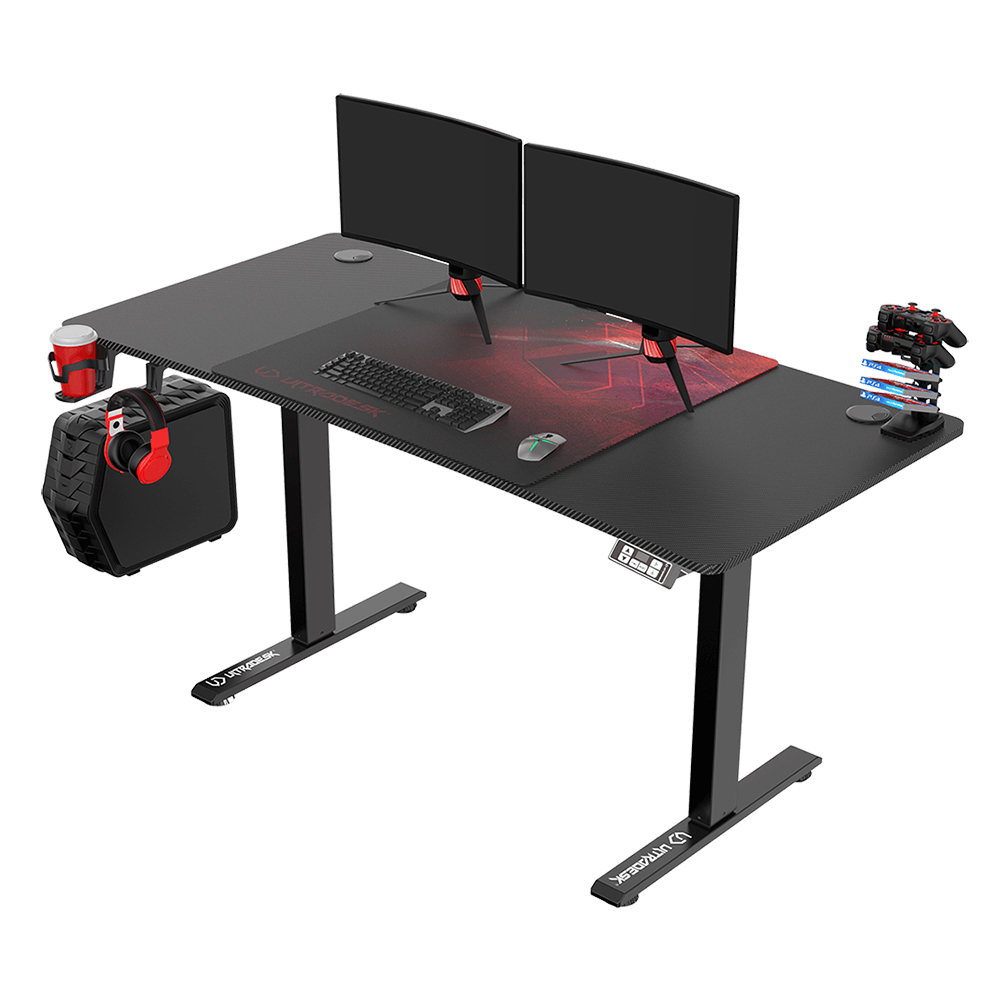
A sit-stand desk is useful only if you actually alternate positions. Fixed-height desks can work well when your chair offers adequate lumbar support and seat-pan depth adjustment. Look for a work surface around elbow height when seated, with forearms roughly parallel to the floor. Chair height should let your feet rest flat on the floor or on a footrest, with thighs supported and knees near 90 degrees. Armrests are optional: if they prevent you from sliding close to the desk, lower or remove them. We cover detailed measurements, monitor arms, and footrest options on our furniture page.

Furniture & setup guide
Ergonomic desk and chair arrangement in a home office

Screens, Keyboards & Mice

Technology should reduce reach and neck tilt—not increase it.

Monitors

Position the top of the screen near eye level so you look slightly downward. Dual monitors suit side-by-side workflows; stack or centre the primary display for deep focus work. Aim for roughly arm's length viewing distance and scale text so you are not leaning forward.

Keyboards

Split and low-profile boards can keep wrists straighter. Keep the keyboard close enough that shoulders stay relaxed. A negative tilt tray may help some users, but comfort varies—adjust in small steps over a week.

Pointing devices

Vertical mice and trackballs shift load away from the forearm. Match device size to your hand and keep movement in the shoulder, not the wrist. Alternate sides occasionally if you use a trackball.

Refresh rates, panel type, and cable management also affect fatigue. Our technology guide compares common setups for Australian home offices, including laptop risers and docking stations.

Read technology guide

Movement, Vision & Daily Rhythm

Even a perfect chair cannot replace movement. Set a timer for short standing or walking breaks every 25–45 minutes—whatever fits your workflow. The 20-20-20 rule is a simple vision habit: every 20 minutes, look at something about 20 feet (six metres) away for 20 seconds to relax focusing muscles. Hydration and regular meal breaks support concentration more reliably than extra caffeine. Align deep-work blocks with your natural energy peaks if your schedule allows. Our health page lists desk-friendly stretches, lighting for screen work, and how to structure a split schedule when caring responsibilities overlap with work hours.

  • Stand or walk for 2–3 minutes each hour when possible
  • Use task lighting that does not glare on the screen
  • Keep prescription eyewear updated for screen distance
Health & movement guide

Light, Air & Acoustic Comfort

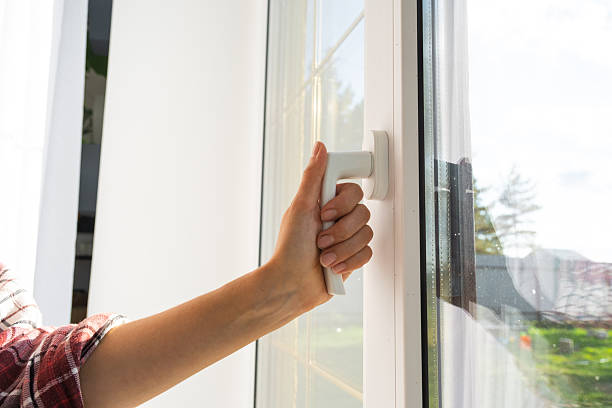
Glare on a monitor often comes from windows behind you or overhead tubes reflected in the panel. Position desks perpendicular to windows when you can, and use blinds to soften direct sun. Indoor air quality improves with brief ventilation breaks—open a window or run a filtered fan. Background noise can be managed with rugs, bookshelves, or consistent low-level sound that masks sudden distractions. Australian summers may require cooling plans separate from your ergonomic checklist; heat affects focus as much as poor posture.

Lighting & atmosphere guide
Home office with balanced natural light and desk lamp

Health & Safety Guidelines

Practical checks before long work sessions.

Route cables so they are not trip hazards; use covers in walkways.
Do not overload power boards; follow manufacturer ratings.
Adjust brightness to match ambient light; enable dark mode if it reduces glare for you.
Tighten monitor arm joints periodically; loose arms can drop screens.
Charge laptops on hard, ventilated surfaces—not beds or couches.
Keep a basic first-aid kit reachable; know your workplace reporting line if you are employed remotely.

If you experience persistent pain, numbness, or vision changes, consult a qualified health professional. These guidelines support general awareness only.

Events Calendar

Seasonal reminders for refreshing your workspace.

DateFocusSuggested action
JanuarySummer heatCheck airflow, fan placement, and hydration near your desk
AprilAutumn light shiftRe-test monitor angle as sun angle changes
JulyMid-year auditClean keyboard, inspect chair mechanisms, review cable layout
OctoberDaylight saving (most states)Adjust blinds and desk lamp timers
DecemberYear-end resetArchive cables, label drawers, plan any furniture upgrades

FAQs

Do I need a standing desk?
Not necessarily. Standing all day has its own load. A desk that adjusts—or simply regular breaks away from the chair—often delivers similar benefits at lower cost.
How do I choose a suitable chair for working from home?
Look for adjustable seat height, lumbar support, and seat depth. Try before you buy when possible. Match the chair to your desk height and body size rather than brand alone.
How high should my monitor be?
The top of the screen is commonly placed at or slightly below eye level. If you wear bifocals, you may need a lower position—ask your optometrist for screen-specific advice.
Are laptop stands worth it?
Yes, when paired with an external keyboard and mouse. Raising the laptop screen reduces neck flexion; typing on the lifted unit alone can strain wrists.

Still have questions? Contact us or explore our topic guides above.

Editorial Standards & Transparency

This section explains how we keep information suitable for general audiences and advertising compliance checks.

General-information format

Our guides are educational and focus on workstation layout, furniture adjustment, monitor placement, and practical work habits. We avoid language that guarantees personal outcomes or promises instant results.

Neutral product references

When we mention equipment types, it is to explain fit, dimensions, and use cases. Readers should compare options independently and verify current supplier information before purchasing.

Clear legal and contact info

We publish transparent contact details, privacy terms, cookie controls, and local legal pages. This helps visitors understand who operates the site and how personal information is handled.

AI transparency (2026)

Where AI-assisted visuals or AI-supported chat features are used, we disclose this clearly at the point of interaction. We label AI-assisted visuals and identify automated chat when enabled.

Current status: this website does not provide automated AI consultations. This website provides general lifestyle information only and is not professional or medical advice. For personal health concerns, consult a qualified professional.