Scale & contrast
Increase OS text scaling before squinting; high contrast themes help in bright rooms.

Monitors, input devices, and connectivity arranged to protect your neck, wrists, and focus.
For general office work, 24–27 inch panels at 1440p offer readable text without excessive scaling on Windows and macOS. Ultrawide screens reduce bezel gaps for spreadsheets and timelines. Mount the display so you look slightly downward at the centre of the screen—usually with the top bezel near eye height. Distance of roughly an arm's length is a starting point; move closer only if text remains crisp without leaning. Dual setups work well when both screens sit at the same height and you centre your body on the primary display. Use monitor arms rated for your panel weight to free desk depth and allow quick tilt adjustments when glare appears.
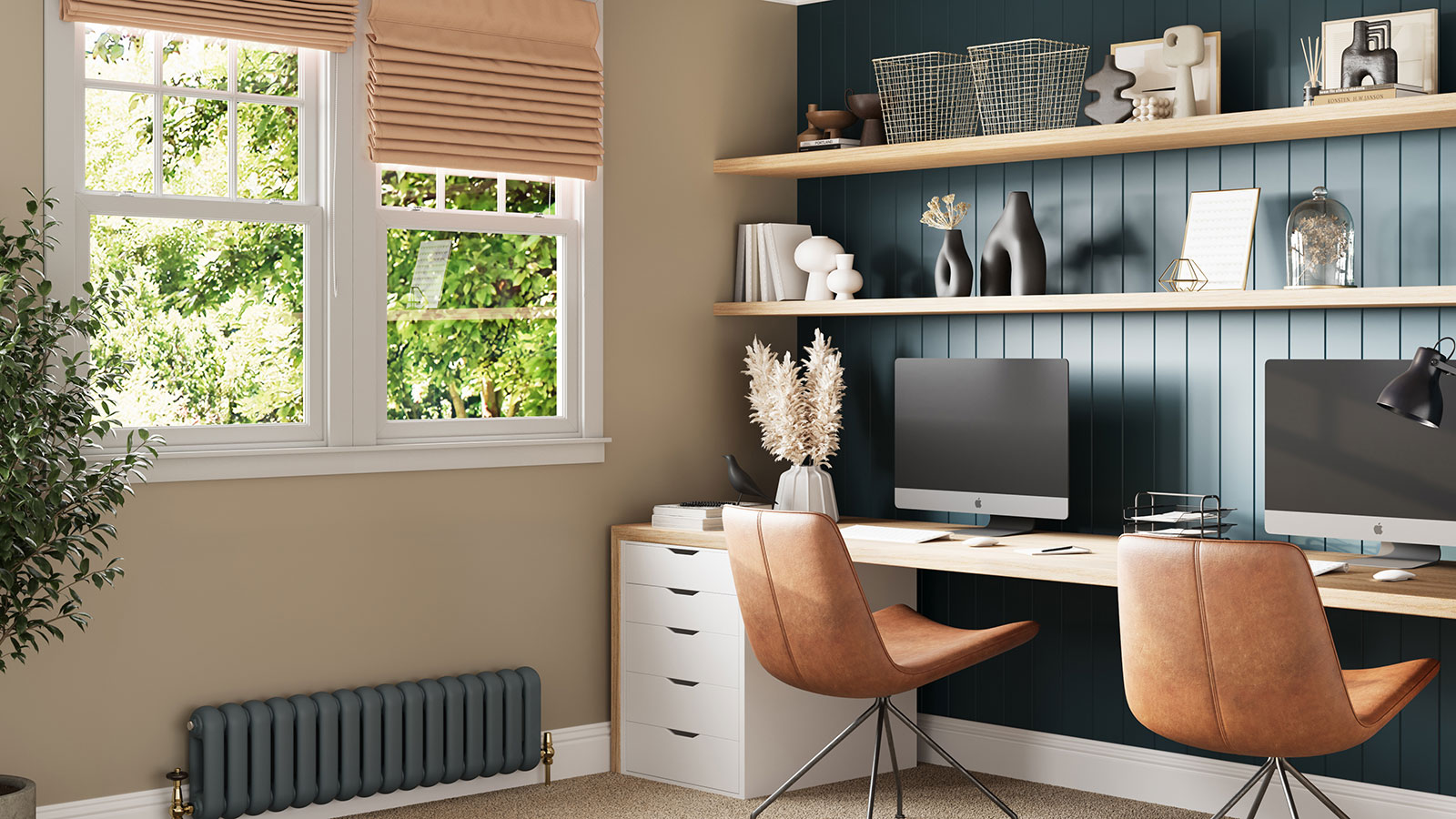
Low-profile chiclet boards suit quiet shared homes; mechanical switches offer tactile feedback some typists prefer for long sessions. Tenkeyless layouts bring the mouse closer, reducing shoulder reach. Split keyboards angle halves to match shoulder width, which may reduce ulnar deviation for some users. Negative tilt—front of keyboard lower than the back—can keep wrists extended less aggressively, but comfort is individual. Place the board so wrists stay straight and elbows stay near the body. Wireless models reduce cable clutter; wired options avoid battery swaps during long meetings. Clean under keycaps quarterly to maintain consistent key travel.
Increase OS text scaling before squinting; high contrast themes help in bright rooms.
60 Hz suffices for office tasks; higher rates matter more for motion-heavy creative work.
Night modes may ease evening strain for some people; daytime focus still depends on breaks and lighting.
Standard flat mice encourage palm anchoring and small wrist movements. Vertical designs rotate the hand to a handshake grip, shifting load to larger muscles for some users. Trackballs keep the device stationary—helpful on narrow desks. Match device size to hand length so buttons sit under fingers without overreaching. Pointer speed around 800–1600 DPI with moderate acceleration is a common starting range; refine until cursor travel feels efficient without wrist flicks. Alternate input tools if one side fatigues—many trackball users switch hands weekly.
| When | Tech focus | Action |
|---|---|---|
| February | Firmware | Update dock and monitor firmware; check cable standards (HDMI 2.1, USB-C PD) |
| May | Peripheral hygiene | Replace worn mouse feet; wipe sensors |
| August | Backup week | Test cloud sync and external drive backups for work files |
| November | Cable audit | Label adapters; retire frayed USB-C leads |
A laptop on a riser with external keyboard and mouse is the baseline ergonomic upgrade. USB-C docks with power delivery reduce daily plug-unplug cycles—one cable for display, network, and charge when your machine supports it. Route cables along desk edges with Velcro ties; leave service loops at connectors to avoid strain. Label both ends of long HDMI runs if you move between rooms. Keep ventilation paths clear—docks and laptops need airflow, especially in warm Australian afternoons.
Ask a setup question